
Our full Salfeld Child Control review: one-time pricing from $19.95, Roaming across devices, web filters, and the honest limitations parents should know before they buy.
It’s 9 p.m., the homework is (allegedly) done, and your kid is still glued to the family PC. You ask them to wrap up. They ask for five more minutes. Ninety minutes later, you’re the villain of the house for turning off the Wi-Fi…
If that scene sounds familiar, you already know why so many parents go looking for software that draws the line for them, instead of relying on willpower alone at the end of a long day.
That’s the gap Salfeld Child Control is built to fill. I spent time going through its feature set, its pricing, and where it falls short, so you can decide whether it’s the right tool for your household before you download anything.
At a Glance
- What it is: parental control software for Windows and Android, made in Germany by Salfeld Computer GmbH, which has built this one product since 2002.
- Standout feature: “Roaming” shares a single screen-time limit across all of a child’s devices, closing the “switch screens for more time” loophole.
- Pricing: a one-time fee from $19.95, not a subscription, with a 30-day free trial and no credit card required.
- Main limitation: it does not manage a child’s iPhone or iPad. Windows and Android only.
Table of Contents
What Is Salfeld Child Control?
Salfeld Child Control is parental control software made by Salfeld Computer GmbH, a German software company that’s been building this specific product since 2002. That’s more than two decades of doing one thing: helping parents manage screen time and content on the devices their kids actually use every day.
It runs on Windows (10 and 11) and Android (5.1 and up). You don’t need to install anything special to check in on it, either. You can log into a web portal or use the parent app from any browser, including on an iPhone, iPad, or Mac. It’s a solid fit for the household I’d guess a lot of you are running: a shared Windows desktop or laptop for homework and gaming, plus a kid’s Android phone or tablet, and a parent who mostly checks in from whatever device is closest.
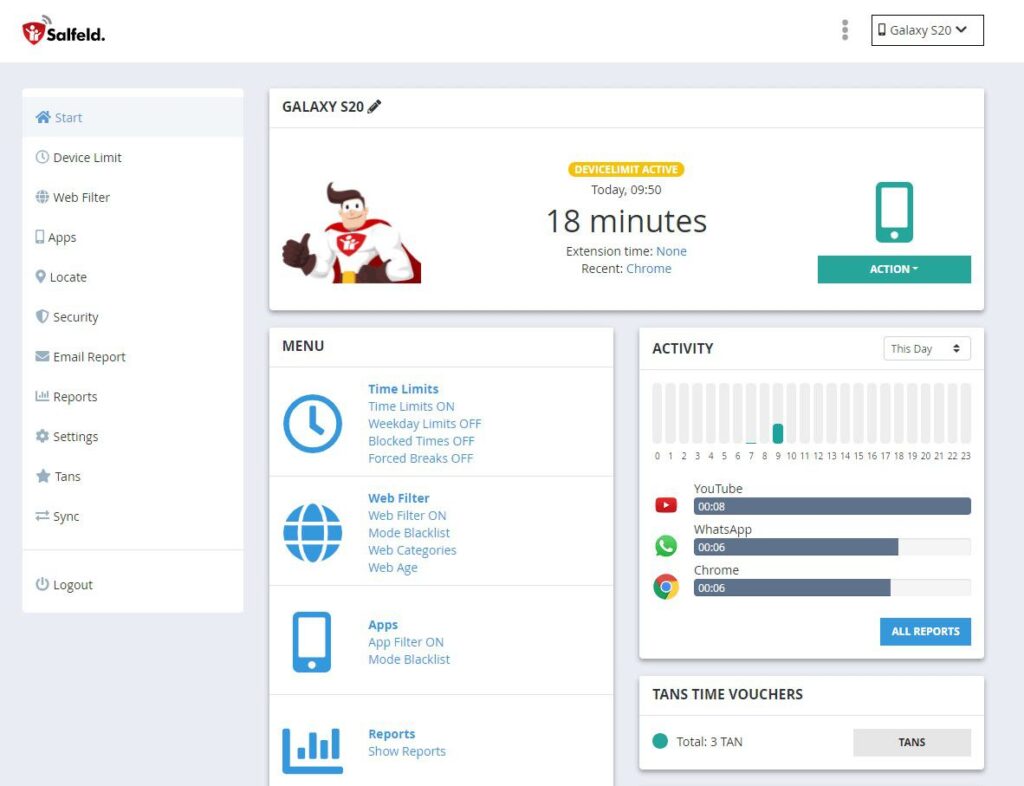
The Salfeld parent dashboard
The parent dashboard shows time remaining, recent activity, and Time Codes at a glance.
Key Features Worth Knowing About
Salfeld isn’t trying to be everything. It’s built around a fairly focused set of tools for managing time and content, and it does a thorough job with each one.
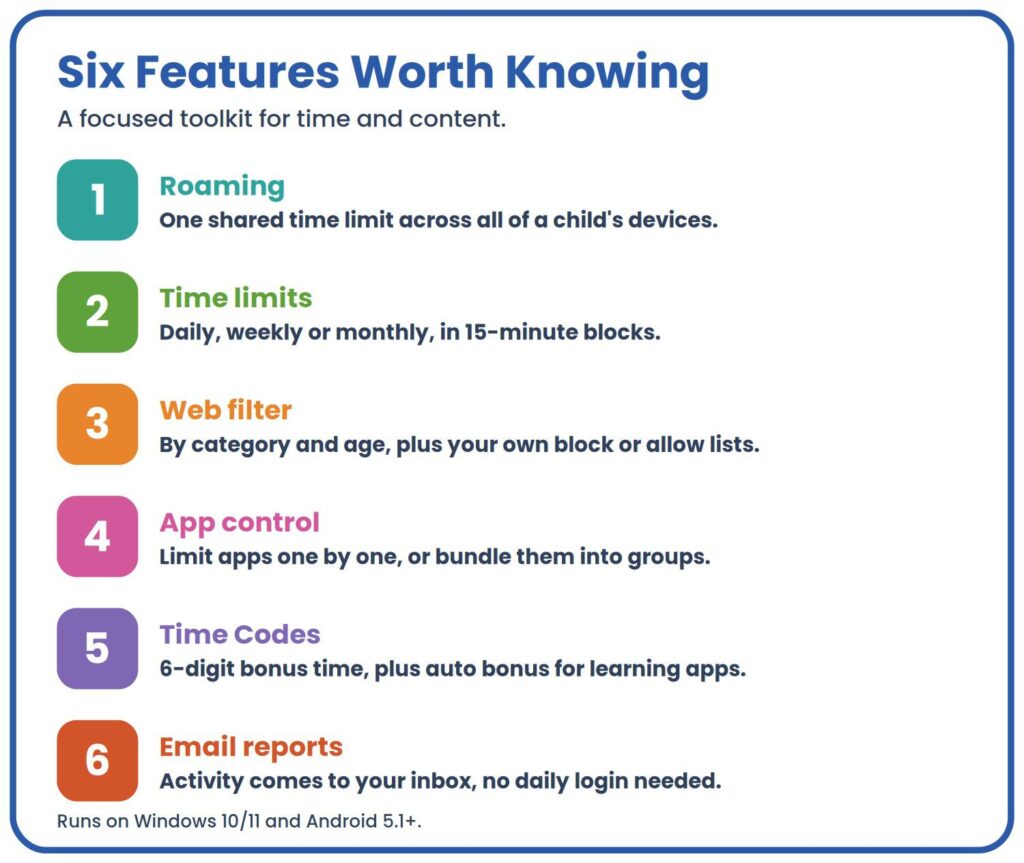
Six features worth knowing
Time limits that actually fit a real schedule. You can set daily, weekly, or monthly time budgets, and block off specific hours in 15-minute increments, which matters more than it sounds. A lot of tools only let you block in full-hour chunks, which never quite matches a real bedtime or dinner schedule. Here, you can say “no screens from 7:45 to 8:15” for the family meal, and it holds.
A web filter you can actually fine-tune. The web filter works by category and age rating, so you’re not starting from zero. But you can also build your own blacklist or whitelist on top of that, which is the part I’d actually use. Every family has that one site that’s technically fine but still a distraction magnet, or one that’s blocked by category but shouldn’t be.
App control, individually or in groups. Beyond the browser, you can set time limits on individual apps, or bundle several into a group with one shared limit. That second part is genuinely useful if your kid has four different game apps that are all really the same problem. You set one limit for the group instead of managing each app separately.
“Roaming”: one limit, every device. This is Salfeld’s standout feature, and the one that solves a problem most competitors don’t. With Roaming turned on, screen time is tracked as one shared total across all of a child’s devices, so if they’ve used their daily allowance on the PC, that limit follows them to their Android phone too. A kid can’t quietly top up more time by switching screens, which is exactly the workaround that makes single-device tools frustrating to enforce.
Time Codes and bonus time. When your child needs a little extra time, you can hand them a 6-digit Time Code that unlocks a set amount of bonus screen time, handy for a Friday movie night or a longer video call with grandparents. Salfeld also automatically grants bonus time for learning apps, a small but smart nudge toward using extra minutes on something worthwhile instead of just more gaming.
Reports that don’t require a login habit. You’ll get daily or weekly email reports, plus more detailed activity reports covering websites visited, searches made, and apps used. I appreciated that this comes to your inbox rather than requiring you to remember to open an app every evening. The report finds you instead of the other way around.
Platforms and Compatibility: Where It Works (and Where It Doesn’t)
Here’s the part to read carefully before you buy anything. Salfeld Child Control installs on your child’s Windows PC or Android device. Those are the two platforms it actually controls. Parent-side management is far more flexible: you can check reports, adjust limits, and respond to unlock requests from any browser, meaning an iPhone, iPad, or Mac works fine for the parent’s side of things.
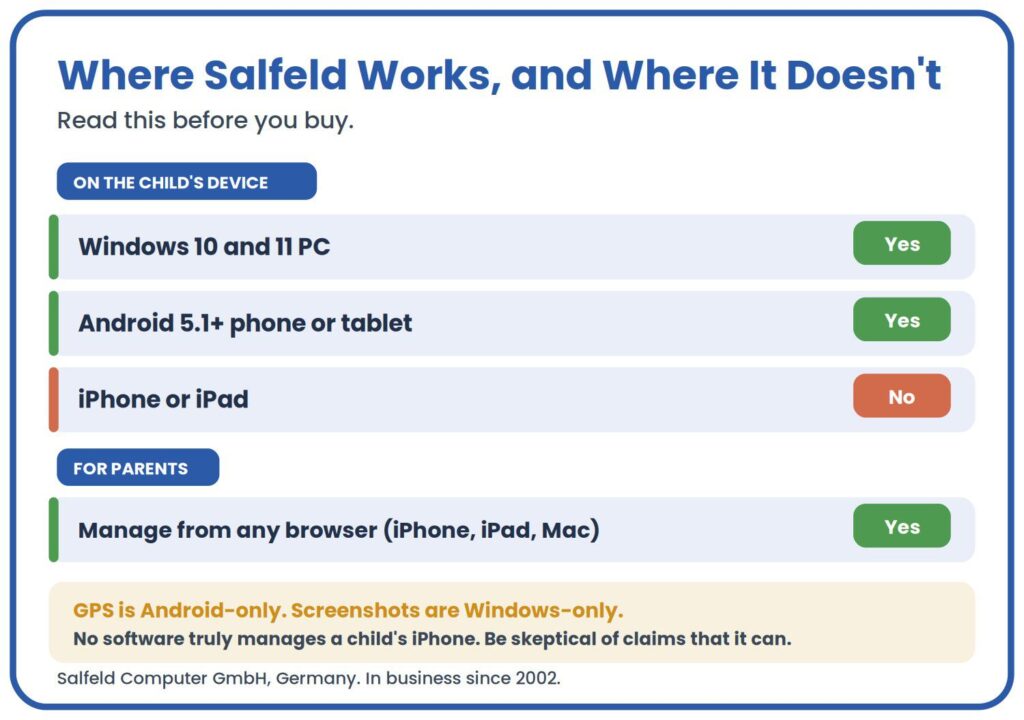
Where Salfeld works, and where it doesn’t
What it can’t do is monitor or restrict a child’s own iPhone or iPad. If your kid’s primary device is an iOS phone, Salfeld simply isn’t built to manage it. There’s no workaround here, and any software claiming full iOS monitoring for a child’s device deserves a skeptical eye. Two other platform-specific limits are worth flagging honestly: GPS and location tracking work on Android only, and the screenshot feature is Windows-only. If your family is Android-and-Windows, none of this matters much. If you’re leaning on an iPhone for your kid’s device, look elsewhere.
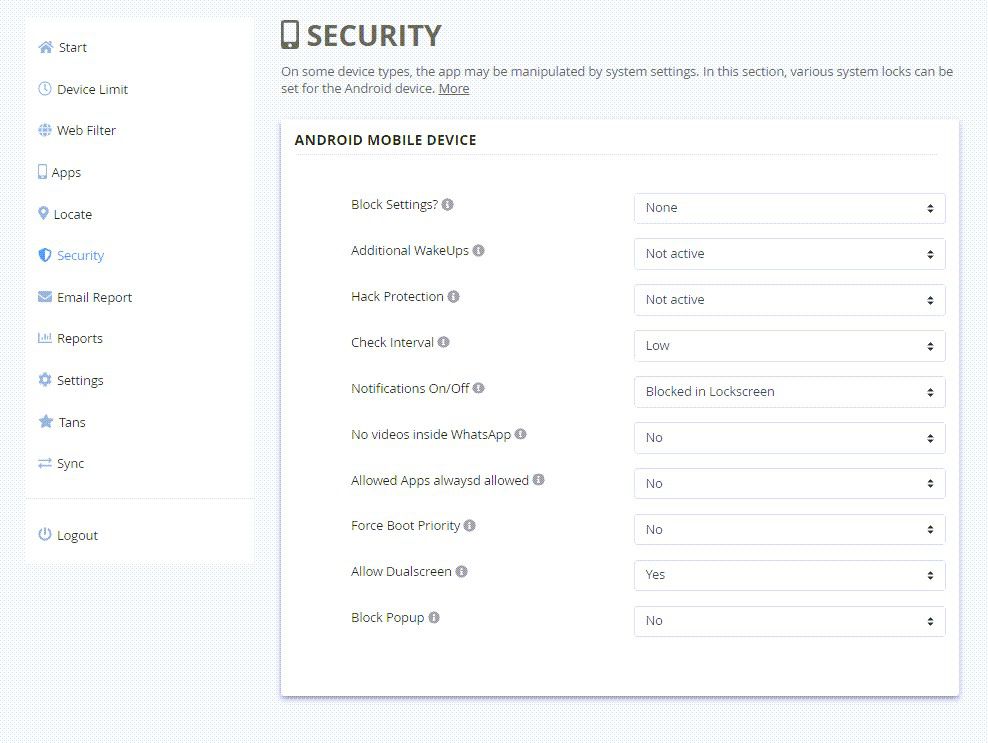
Salfeld Android security settings
The Android security settings let you lock down system-level tampering, so a child can’t quietly disable the app.
Pricing and Plans: Is Salfeld Worth It?
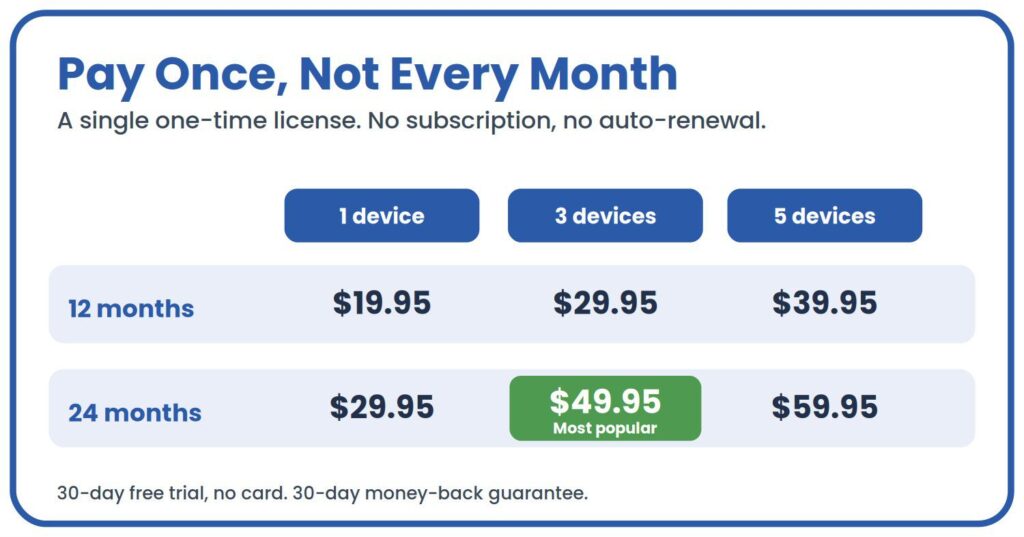
This is where Salfeld does something most of its competitors don’t: it charges a one-time fee, not a subscription. You pick a license length and a device count, pay once, and you’re done for that period. No recurring monthly charge to remember to cancel.
One-time pricing, not a subscription
In short, a 12-month license runs from $19.95 for one device to $39.95 for five, and a 24-month license runs from $29.95 to $59.95 for the same device counts. The three-device, 24-month license at $49.95 is the most popular pick. The license is delivered by email, backed by a 30-day money-back guarantee, and there’s a 30-day free trial with no credit card required, worth using before you commit, especially to check that the Roaming feature behaves the way your household needs it to. One license covers each child’s device, but parent access through the web portal or parent app doesn’t cost anything extra.
Is it worth it? If you’re comparing this to a $60 to $100-a-year subscription you’ll be paying indefinitely, a one-time $29.95 charge for three devices over 12 months is a genuinely different math problem. You’re trading some of the broader platform coverage that subscription competitors offer for a lower, fixed cost and no ongoing billing to track.
Pros and Cons
Pros:
- One-time payment instead of a recurring subscription. Pay once, no billing to cancel later.
- Roaming closes the “switch devices to get more time” loophole that frustrates a lot of parents.
- Time increments of 15 minutes are granular enough to match a real household schedule.
- Time Codes and bonus time for learning apps add a reward system instead of pure restriction.
- Encrypted syncing and a privacy-focused approach, without collecting more data than the app needs.
Cons:
- No monitoring of the child’s device at all if that device is an iPhone or iPad. Windows and Android only.
- GPS and location tracking are Android-only, so you won’t get location data from a Windows PC.
- The sheer range of settings can feel dense the first time you open the dashboard. Plan for a real setup session, not a five-minute skim.
- Some of the more advanced configuration, like fine-tuning app groups or custom filter lists, takes a bit of patience to get exactly right.
How Salfeld Compares to Alternatives
Salfeld vs. the alternatives
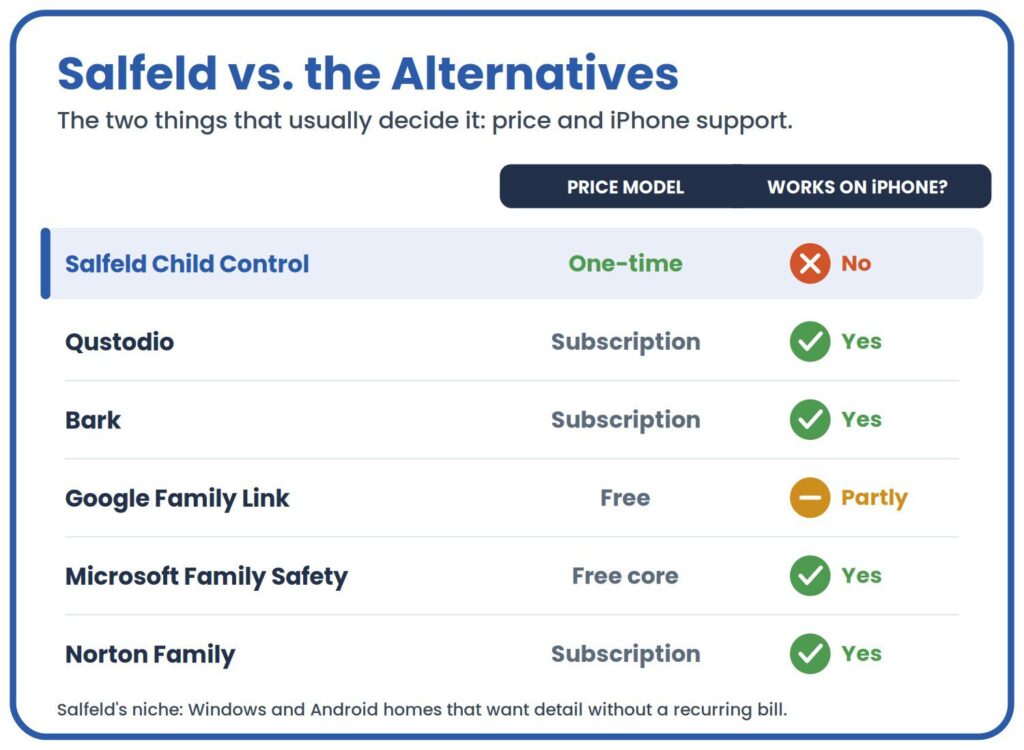
The pattern is pretty clear once you lay it out: Qustodio, Bark, and Norton Family all monitor iOS devices, which Salfeld doesn’t touch. That’s a real advantage if your kid’s phone is an iPhone. But those same tools bill you every month or year, indefinitely. Family Link and Microsoft’s free tier cost nothing but come with fewer of the fine-grained controls Salfeld offers, like Roaming and 15-minute time blocks. Salfeld’s niche is specific: households on Windows and Android who want detailed control without a recurring bill. If you want to go deeper on any single rival, Salfeld publishes its own detailed, feature-by-feature comparisons against Qustodio, Bark, Norton Family, Microsoft Family Safety, and Google Family Link.
Who Salfeld Child Control Is Best For
Salfeld makes the most sense for families whose kids mainly use a Windows computer and an Android phone or tablet, the classic shared-desktop-plus-personal-Android setup that a lot of households actually have. It’s also a strong fit if you’ve been burned by subscription fatigue and want to pay once and be done, or if the “switching devices to dodge the timer” trick is a daily argument in your house.
If your child’s main device is an iPhone or iPad, though, look elsewhere. Salfeld genuinely can’t help you there, and no amount of workaround changes that. Families that specifically need message or social media content monitoring, rather than time and website management, will likely get more mileage out of Bark or Qustodio instead.
Verdict
Salfeld Child Control does a narrower job than some of its subscription-based rivals, and it’s upfront about that rather than overselling iOS support it doesn’t have. What it does, time limits, web filtering, and especially Roaming across a child’s Windows and Android devices, it does well, and it does it for a single payment instead of a recurring one. For the specific household running a shared PC and an Android phone, that combination of Salfeld’s Roaming feature and one-time pricing is hard to match dollar for dollar. If it sounds like a fit, the 30-day free trial is the fastest way to see whether Roaming works the way your household needs before you pay anything.
Frequently Asked Questions
Does Salfeld Child Control work on iPhones? Not for monitoring or restricting a child’s device. Salfeld only installs on Windows PCs and Android devices. Parents can, however, check reports and manage settings from an iPhone, iPad, or Mac through a browser or the parent app, since that side of things isn’t tied to a specific operating system.
How much does Salfeld Child Control cost? Pricing is a one-time fee, not a subscription. A 12-month license runs $19.95 for one device up to $39.95 for five devices, and a 24-month license runs $29.95 to $59.95 for the same device counts. There’s a 30-day free trial with no credit card required.
What is the Roaming feature in Salfeld Child Control? Roaming combines a child’s screen time across every device they use, PC and Android alike, into one shared limit. It’s designed specifically to stop a child from using up their PC time and then simply switching to their phone to keep going.
Can I track my child’s location with Salfeld? Only on Android devices. Salfeld’s GPS and location tracking features don’t extend to Windows PCs, which makes sense given that a desktop or laptop generally isn’t carried around the way a phone is.
Is Salfeld Child Control hard to set up? The initial install is straightforward, but the dashboard has a lot of settings packed into it, so budget a proper sit-down session rather than a quick five-minute setup. Once your limits, filters, and app groups are configured the way you want, day-to-day use is largely hands-off.